Connecting ChatGPT to the ThreatStream MCP Server
You can connect ChatGPT to the ThreatStream MCP server to access ThreatStream and Security Analytics data in ChatGPT conversations. The connection procedure depends on your ChatGPT account type:
-
Personal account: Add a custom MCP server and configure the connection using OAuth (MCP) credentials.
-
Business or Enterprise account: Connect to the ThreatStream integration (plugin) published by your ChatGPT workspace administrator and authenticate using your ThreatStream username and API key.
After connecting, you can use ChatGPT to retrieve data available to your ThreatStream account. The data ChatGPT can access depends on your Anomali platform permissions and the scopes configured for the ChatGPT integration.
To learn more about the ThreatStream MCP server and its capabilities, see ThreatStream MCP Server Overview.
Before You Begin
Gather the information required for your account type, then follow the corresponding procedure.
Personal account users and workspace owners
-
Supported ChatGPT plan and access to custom MCP servers. Your account must support the custom MCP server functionality described in this procedure.
-
ThreatStream MCP server URL. Use the following ThreatStream MCP server URL:
https://optic.threatstream.com/mcpwhen adding the ThreatStream MCP server to your ChatGPT account. -
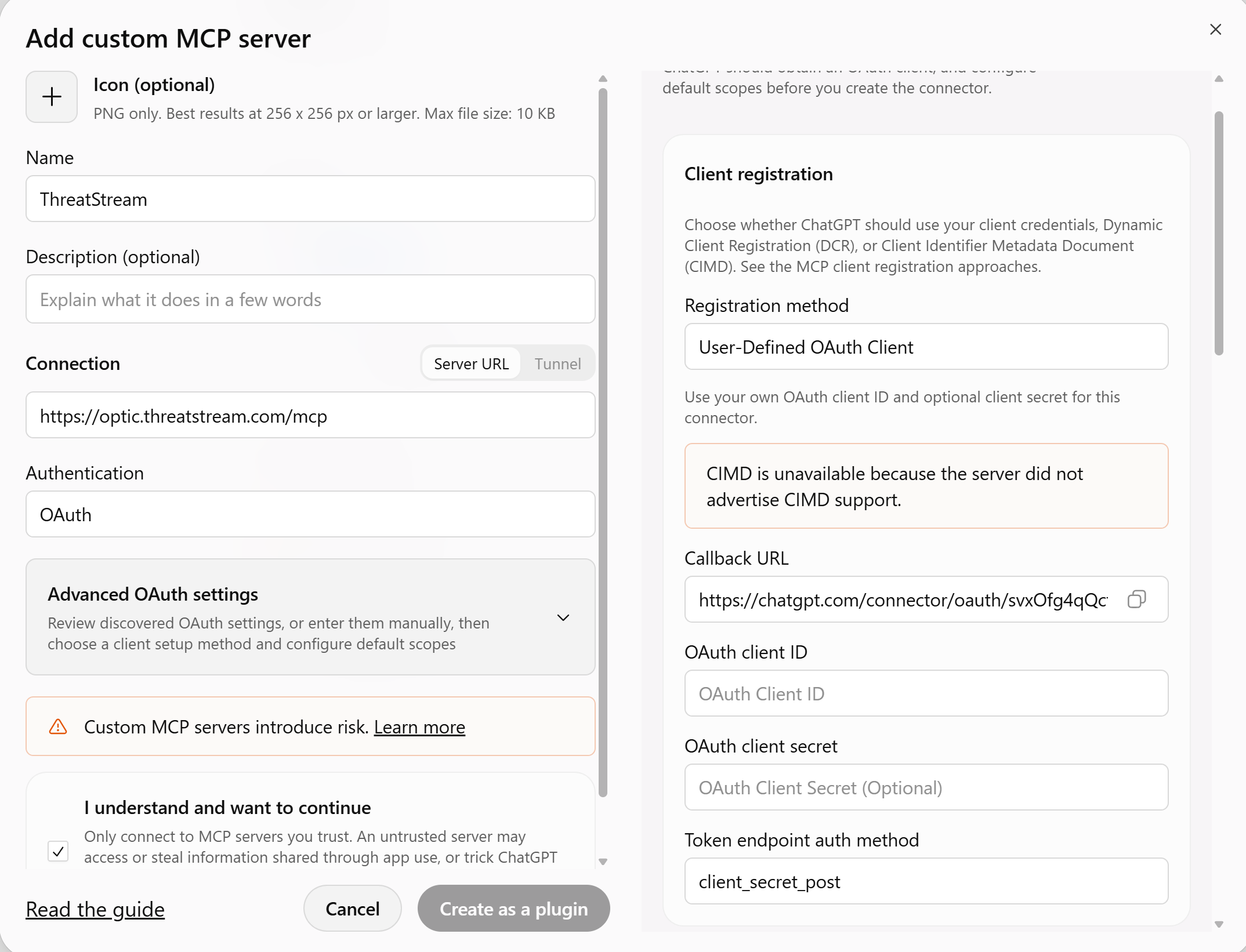
ChatGPT callback URL. In ChatGPT, open the Add custom MCP server dialog under Plugins and enter the MCP server URL in the Connection field to enable Advanced OAuth settings. Under the User-Defined OAuth Client registration method, copy the exact Callback URL. You will need this URL when creating the MCP credentials in ThreatStream.
-
A set of OAuth credentials (MCP credentials). Obtain the OAuth Client ID and Client Secret required to configure the connection. See Managing MCP Credentials for details.
-
Required OAuth scopes. Determine which scopes to configure for your connection. The available scopes and the operations you can perform depend on your Anomali platform configuration and permissions. To learn more about available scopes, see Creating MCP Credentials.
Business or Enterprise account users
-
Access to your corporate ChatGPT workspace. You must sign in to the workspace where your Organization Administrator has published the ThreatStream integration. If you do not have access, ask your workspace Organization Administrator to invite you.
-
ThreatStream API key. You need an API key associated with your ThreatStream account. You can find it on the My Account page in ThreatStream Settings. See Managing My Account Settings.
If you cannot view your API key, ask your ThreatStream Organization Administrator to grant you the API User permission.
Connecting a Personal ChatGPT Account
To connect a personal ChatGPT account, add ThreatStream as a custom MCP server and configure OAuth authentication.
To connect a personal ChatGPT account:
-
Sign in to ChatGPT and navigate to the Plugins page.
-
Click Add and select Add custom MCP server.
-
In the Add custom MCP server dialog, enter the following:
-
Name: A name for the MCP server. For example, ThreatStream.
-
Description (optional): A short description of the server.
-
Connection:
https://optic.threatstream.com/mcp. -
Authentication: OAuth.
-
Advanced OAuth settings: Open the advanced settings and configure the OAuth client:
-
Registration method: Select the User-Defined OAuth Client registration method.
-
OAuth client ID: Enter the Client ID you created for the ChatGPT MCP connection.
-
OAuth client secret: Enter the Secret Key associated with the Client ID you created for the ChatGPT MCP connection.
-
Default scopes: Select scopes specified for your connection. By default, all scopes are selected.
-
-
-
Review the connection settings and select I understand and want to continue.
-
Click Create as a plugin.
The ThreatStream connection is added to your list of plugins. If ChatGPT prompts you to authorize the connection, follow the on-screen instructions to complete authorization.
Connecting a Business or Enterprise Account
Before workspace members can connect to ThreatStream, a ChatGPT Business or Enterprise workspace owner or administrator must add the ThreatStream MCP server to the workspace and configure its OAuth settings. After the integration is created and made available in the workspace, members can connect using their ThreatStream username and API key.
If you are a workspace owner or administrator, follow these steps to configure and publish the ThreatStream integration (plugin):
-
Sign in to ChatGPT using your workspace owner account.
-
Enable developer mode.
-
Navigate to Plugins.
-
Click Add > Create MCP plugin.
-
In the New Custom plugin dialog, enter the following details:
-
Name: A name for the MCP server. For example, ThreatStream.
-
Description (optional): A short description of the server.
-
Connection:
https://optic.threatstream.com/mcp. -
Authentication: OAuth.
-
Advanced OAuth settings: Open the advanced settings and configure the OAuth client:
-
Registration method: Select the User-Defined OAuth Client registration method.
-
OAuth client ID: Enter the Client ID you created for the ChatGPT MCP connection.
-
OAuth client secret: Enter the Secret Key associated with the Client ID you created for the ChatGPT MCP connection.
-
Default scopes: Select scopes specified for your connection. By default, all scopes are selected.
-
-
-
Review the connection settings and select I understand and want to continue.
-
Click Create.
After publication, verify that the plugin appears in the workspace and that the intended members can access it.
If you are a member of a corporate ChatGPT workspace, follow these steps to connect ThreatStream to your ChatGPT account:
-
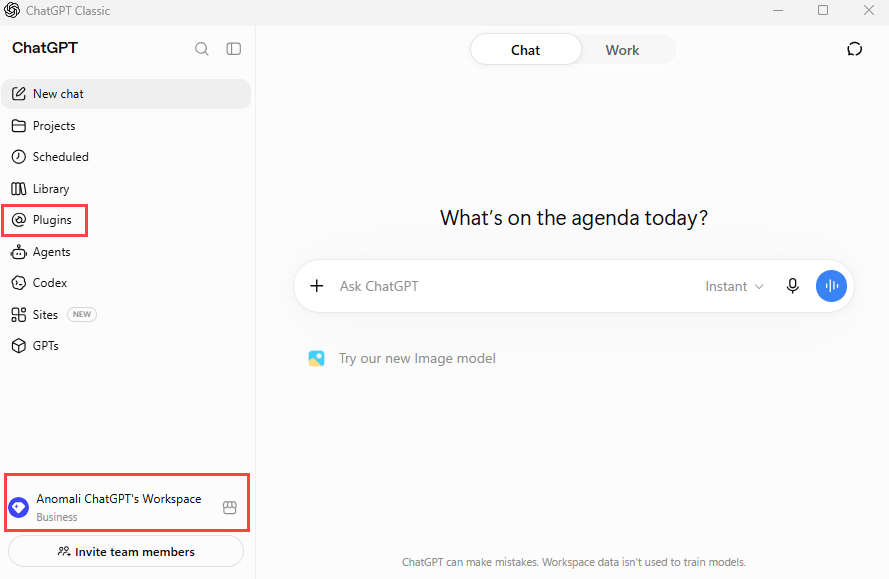
Sign in to your corporate ChatGPT workspace and open the Plugins page.
-
Locate the ThreatStream plugin and click +. Note that the plugin name may vary depending on how your Organization Administrator has configured it.
Note: If you cannot locate the ThreatStream plugin, contact your Organization Administrator to install it in your corporate workspace.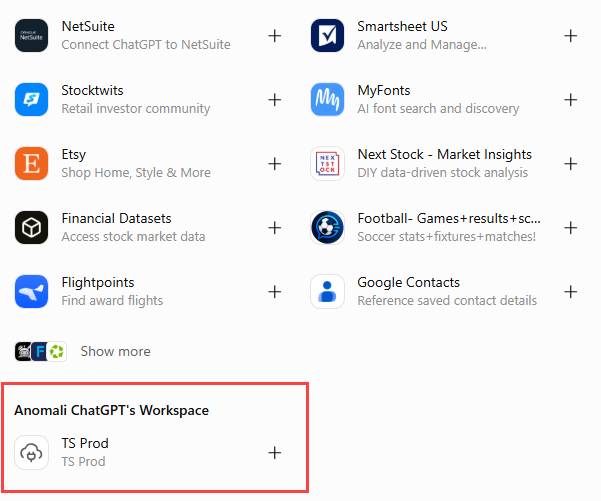
-
In the Connect to ThreatStream pop-up message, enter your ThreatStream username and ThreatStream API key in the following format:
Api-Key <your_email>:<your_key>.
For example,Api-Key joe_example@anomali.com:6555555555555572222eec1c10a8ae2755f4386071b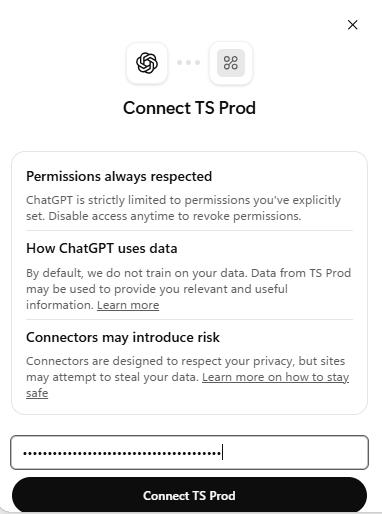
-
Click Connect ThreatStream.
The ThreatStream plugin is now connected. The connection persists across sessions, so you do not need to reconnect every time you start a new chat. You must reconnect only if the connection is revoked or you explicitly disconnect it.
Using ThreatStream in ChatGPT Conversations
After connecting the ThreatStream MCP server, you can use it in ChatGPT conversations to retrieve intelligence available to your account.
-
Open a ChatGPT conversation.
-
Open the tools or sources menu and select ThreatStream. The exact menu and label may vary depending on your ChatGPT interface.
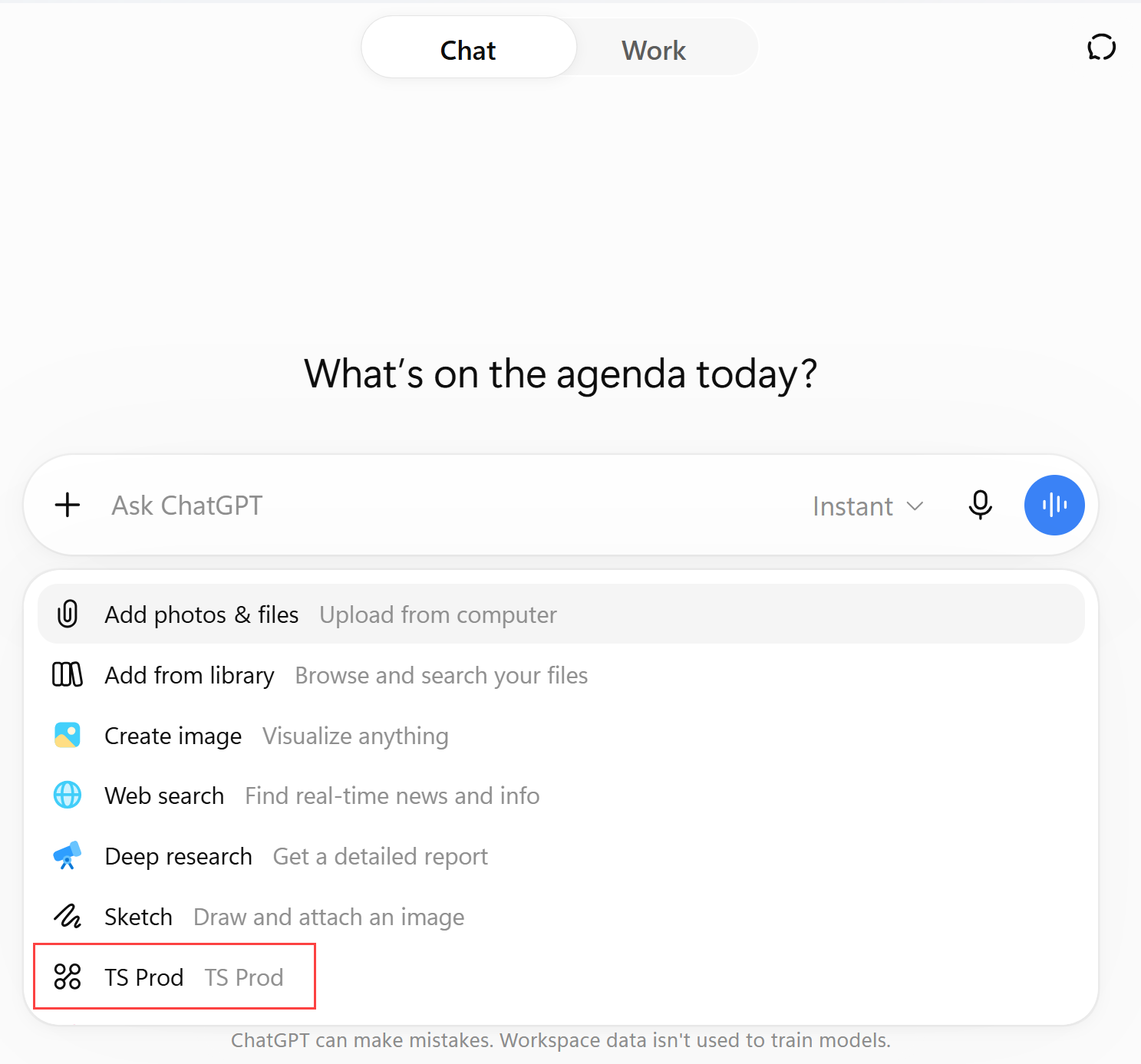
-
Enter a prompt describing the intelligence you want to retrieve. For example, ask ChatGPT to look up a threat actor or search for an observable in ThreatStream.
-
Review the response and open the Sources panel to check whether ThreatStream was used.
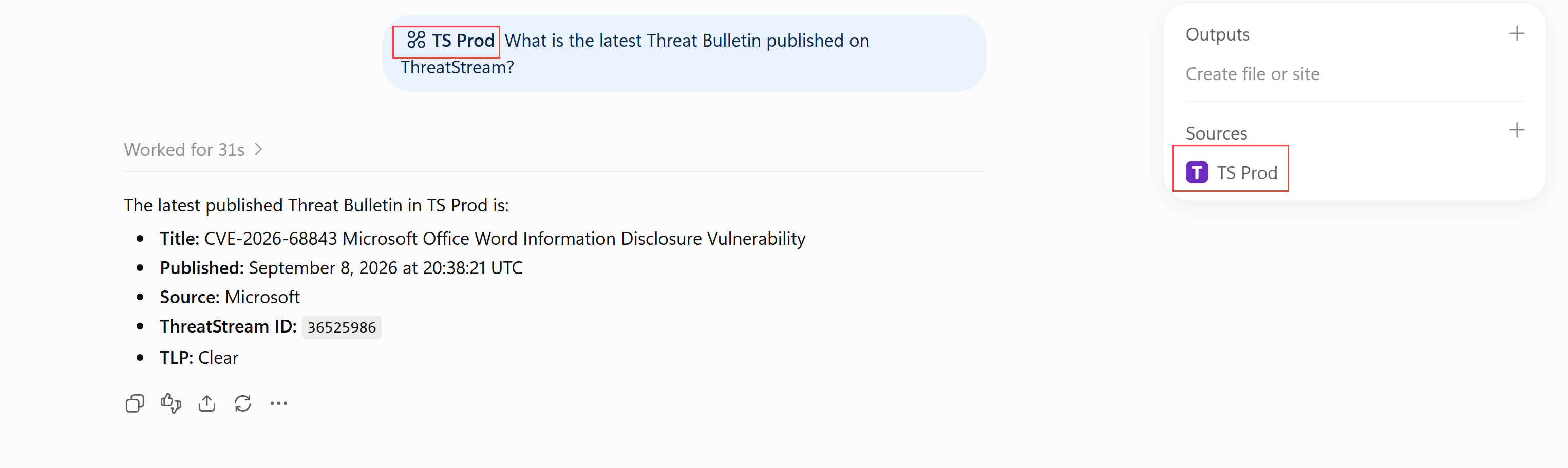
Selecting ThreatStream makes it available to the conversation, but does not guarantee that ChatGPT will invoke it for every prompt or exclude other sources. Check the Sources panel to verify which sources were used. If the response does not show ThreatStream, select it again if necessary and retry the prompt.
For prompt guidelines, refer to Guidelines for Interacting With MCP Clients.
Troubleshooting
| Issue | Likely Cause | Resolution |
|---|---|---|
| ThreatStream MCP server doesn't appear under Plugins | The ThreatStream plugin has most likely not been published to your workspace yet. | Contact your corporate workspace admin and request to add it to the workspace. |
| Connection fails / API key rejected | The API key was not entered in the exact required format. The mandatory Api-Key prefix is missing. |
Enter the key in the exact required format, including the mandatory Entering just |
| You are prompted to reconnect | The connection was revoked, or the plugin was disconnected. Connections persist across sessions by default, so this prompt should only appear in these cases. | Reconnect the ThreatStream plugin when prompted. |
| ThreatStream does not appear in the Sources panel | Selecting ThreatStream does not automatically exclude other sources, so other active sources may be taking precedence. | Return to the + menu in the chat, deselect any other active sources, and re-run your query. Always check the Sources panel for the response to confirm scoping before trusting the answer. |
| ChatGPT can connect, but specific actions fail or return a permissions error | Your user account does not have the required permissions to query this data. | Contact your Anomali Organization Administrator to add the required permissions. |
| PIR or Security Analytics tools are missing or unavailable | Your organization does not use ThreatStream Next Gen or Security Analytics, or the corresponding scope was not requested. | Confirm with your Anomali Organization Administrator whether your organization has access to ThreatStream Next Gen (for PIRs) and Security Analytics. Verify whether the required scopes have been selected. |
| ThreatStream is connected but never shows up in the Sources panel | Either ThreatStream was not selected for that specific conversation, or ChatGPT decided not to invoke it for that query. | Re-select ThreatStream from the + menu, or name it explicitly in your prompt (for example, Use ThreatStream to look up "X"). |
| The response includes general knowledge instead of ThreatStream intelligence. | Selecting a source does not guarantee it is queried for every message, so ChatGPT may answer from general knowledge. | Add explicit language to your prompt, such as: "Only use ThreatStream for this. Do not answer from general knowledge." |